IPTV Android Box Setup 2026 – Best Apps, Settings & Fixes
IPTV Android box setup in about 10 minutes: install TiviMate or IPTV Smarters, log in with Xtream Codes and stream 48,000+ channels in FHD and 4K.
Updated: November 27, 2026
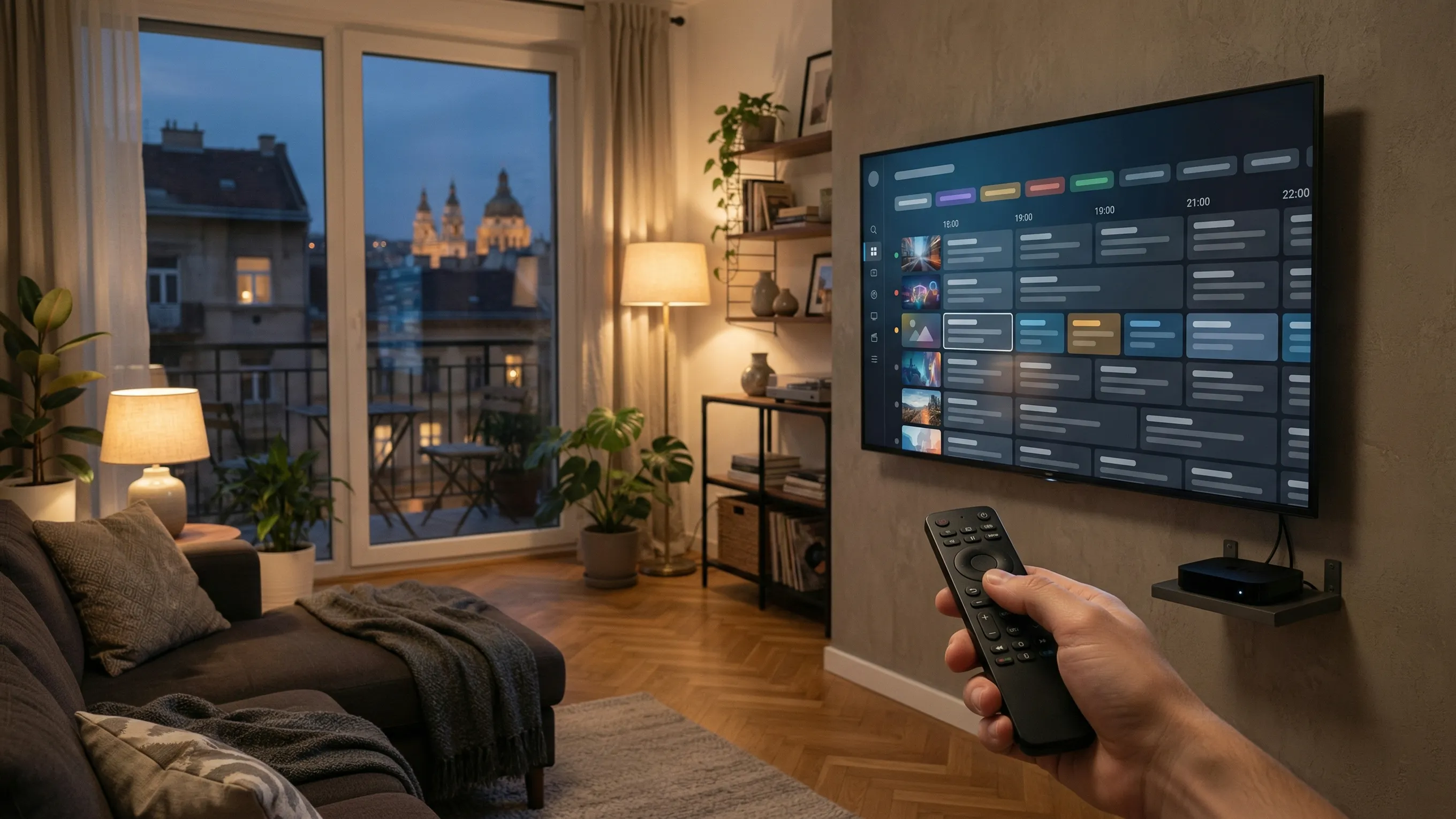
An IPTV Android box is a small Android TV or Google TV media player that plugs into your television's HDMI port and streams live TV over the internet through an IPTV app. Setting it up takes about ten minutes: install TiviMate or IPTV Smarters Pro from Google Play, enter the Xtream Codes login or M3U link from your provider, and the channel list and programme guide load automatically. With a wired connection or 5 GHz Wi-Fi, an Android box plays FHD and 4K channels smoothly and turns any TV, old or new, into a full IPTV receiver.
Android TV is the most flexible platform for IPTV in 2026. It runs the widest choice of IPTV players, including TiviMate, which is not available on Samsung, LG or Apple TV. It also gives you control over decoder, buffer and frame-rate settings that closed smart TV systems hide. Our team at the Hungarian IPTV service has supported Android box users since 2022, and in our tests a well-configured box is the setup that generates the fewest support questions.
This guide is about getting IPTV running well on an Android box you already own or are about to buy. It covers the difference between Android TV, Google TV and no-name boxes, a step-by-step installation, an app comparison, the settings that most affect picture quality, a security section on uncertified boxes, and fixes for the problems we see most often. It works the same whether you watch from Budapest, London, Vienna or Toronto.
Quick Summary (TL;DR)
- An IPTV Android box is an Android TV or Google TV device that plays live channels through an IPTV app; it connects over HDMI and needs only an internet connection.
- Best apps: TiviMate (best programme guide, optional paid Premium tier), IPTV Smarters Pro (free, simple), IBO Player Pro (familiar from smart TVs), plus OTT Navigator and Kodi for advanced users.
- Setup takes about 10 minutes: install the app, choose Xtream Codes or M3U, paste the credentials Hungary IPTV sends on WhatsApp, and let the channels and EPG load.
- Picture quality depends on settings: use Ethernet or 5 GHz Wi-Fi, turn on frame-rate matching, and keep the hardware decoder on. Plan on ~10 Mbps for FHD and ~25 Mbps for 4K.
- Choose a Play Protect certified box. The FBI warned in June 2025 that generic, uncertified Android streaming boxes can carry malware before they are even switched on.
Table of Contents
- What Is an IPTV Android Box?
- Why an Android Box Is a Great Choice for IPTV
- Which Android Box Should You Choose?
- How to Set Up IPTV on an Android Box – Step by Step
- Best IPTV Apps for Android Boxes – Comparison
- Android TV Settings for Better Picture Quality
- Security: Certified or No-Name Android Box?
- Troubleshooting IPTV on an Android Box
- Pros and Cons
- Frequently Asked Questions About IPTV Android Boxes
- Conclusion: Getting the Most From Your IPTV Android Box
Try Hungary IPTV before paying anything
What Is an IPTV Android Box?
An IPTV Android box is a set-top media player running Google's Android TV or Google TV operating system, used to watch internet television through an IPTV app. The box handles the network connection and video decoding, while the app reads your provider's playlist and programme guide. Your TV only needs an HDMI input.
IPTV (Internet Protocol Television) delivers live channels as data streams over your broadband line instead of through an aerial, satellite dish or cable. The provider's servers send each channel in formats such as HLS or MPEG-TS, and the IPTV player on the box requests the stream, buffers a few seconds of it and decodes H.264, H.265/HEVC or, on newer chips, AV1 video. An M3U8 playlist or an Xtream Codes API login tells the player which channels exist, and an XMLTV programme guide (EPG) adds the schedule.
Not every "Android box" is the same, and the difference matters more than most guides admit:
- Android TV boxes run the TV edition of Android that Google licenses to manufacturers. The Nvidia Shield TV, Formuler Z11 Pro Max and the first Xiaomi Mi Box S are examples. They come with Google Play, receive security updates from the manufacturer and use a remote designed for TV navigation.
- Google TV boxes run the same Android TV system with Google's newer, recommendation-heavy home screen on top. The Google TV Streamer and the Xiaomi TV Box S (2nd Gen) belong here. For IPTV they behave exactly like Android TV boxes: the same apps, the same settings menus, slightly different menu names.
- Generic "AOSP" boxes are no-name devices built on the Android Open Source Project, usually sold online with names like X96, H96 or "Android 13 TV Box". Many run phone Android rather than TV Android, have no Google certification, receive no updates and come with an unknown app store pre-installed. Some work, but they are the category behind most of our troubleshooting tickets, and they carry real security risks, covered later in this guide.
In this guide, "IPTV Android box" means the first two categories. To check yours, open Play Store → Settings → About → Play Protect certification.
Why an Android Box Is a Great Choice for IPTV
An Android box gives you the widest app choice, the most control over playback and a fast, dedicated device that keeps working when your TV's own software ages. For IPTV specifically, it is the platform that best combines simple setup with room to fine-tune.
The widest choice of IPTV players
Google Play on Android TV carries more IPTV players than any other TV platform. TiviMate, which many viewers consider the best IPTV interface available, runs only on Android, so Samsung Tizen, LG webOS and Apple TV owners cannot use it. You can also run IPTV Smarters Pro, IBO Player Pro, OTT Navigator or Kodi side by side and switch between them with the same subscription. That matters because each app handles the programme guide, catch-up and VOD differently, and on Android you can simply pick the one you like.
More control than a smart TV
Built-in smart TV apps rarely let you choose the video decoder, adjust the buffer or match the refresh rate to the channel. On Android TV you can do all three, and those settings solve most stuttering and judder problems.
It refreshes an older TV
Smart TV platforms stop receiving app updates after a few years. An Android box replaces the TV's software entirely: the TV becomes a screen, and the box brings a current system, current apps and 4K HDR decoding. In our experience this is the most common reason people buy a box.
Built for diaspora households
For Hungarians abroad, an Android box is the easiest way to get M1, Duna TV, RTL Klub, TV2 and M4 Sport onto the family TV in the UK, Germany, Austria or North America. It behaves the same in every country: same credentials, and the TV's region settings make no difference.
Which Android Box Should You Choose?
For IPTV, choose a Google-certified Android TV or Google TV box with at least 2 GB of RAM, Ethernet or Wi-Fi 6, and hardware decoding for H.265/HEVC. Popular reliable choices are the Nvidia Shield TV, the Xiaomi Mi Box S / TV Box S, the Google TV Streamer and Formuler boxes.
This guide focuses on setup, so here is the short version. For full specifications, prices and a ranked comparison, see our IPTV set top box buyer's guide.
| Box | System | Strength for IPTV | Keep in mind |
|---|---|---|---|
| Nvidia Shield TV / Shield TV Pro | Android TV | Very fast, excellent upscaling, long update history | Older design, no AV1 hardware decoding |
| Xiaomi Mi Box S / TV Box S (2nd Gen) | Android TV / Google TV | Inexpensive, certified, runs TiviMate well | Modest RAM and storage; clear cache regularly |
| Google TV Streamer | Google TV | Current hardware, built-in Ethernet port | Google TV home screen pushes recommendations |
| Formuler Z11 Pro Max | Android TV | Built for IPTV, pre-installed MYTVOnline player | Pricier than mainstream boxes |
Two practical rules from our support work:
- An Ethernet port matters more than the chip. A mid-range box on a cable streams 4K more smoothly than a flagship box on weak Wi-Fi.
- Avoid stick devices with very little storage if you plan to use large programme guides. TiviMate and OTT Navigator store guide data locally, and nearly full storage is a common cause of slowdowns.
If you are still deciding between an Android box, a Fire TV Stick, Apple TV or your TV's own apps, our overview of the best devices for IPTV streaming compares them side by side.
Activate your trial in just a few minutes
How to Set Up IPTV on an Android Box – Step by Step
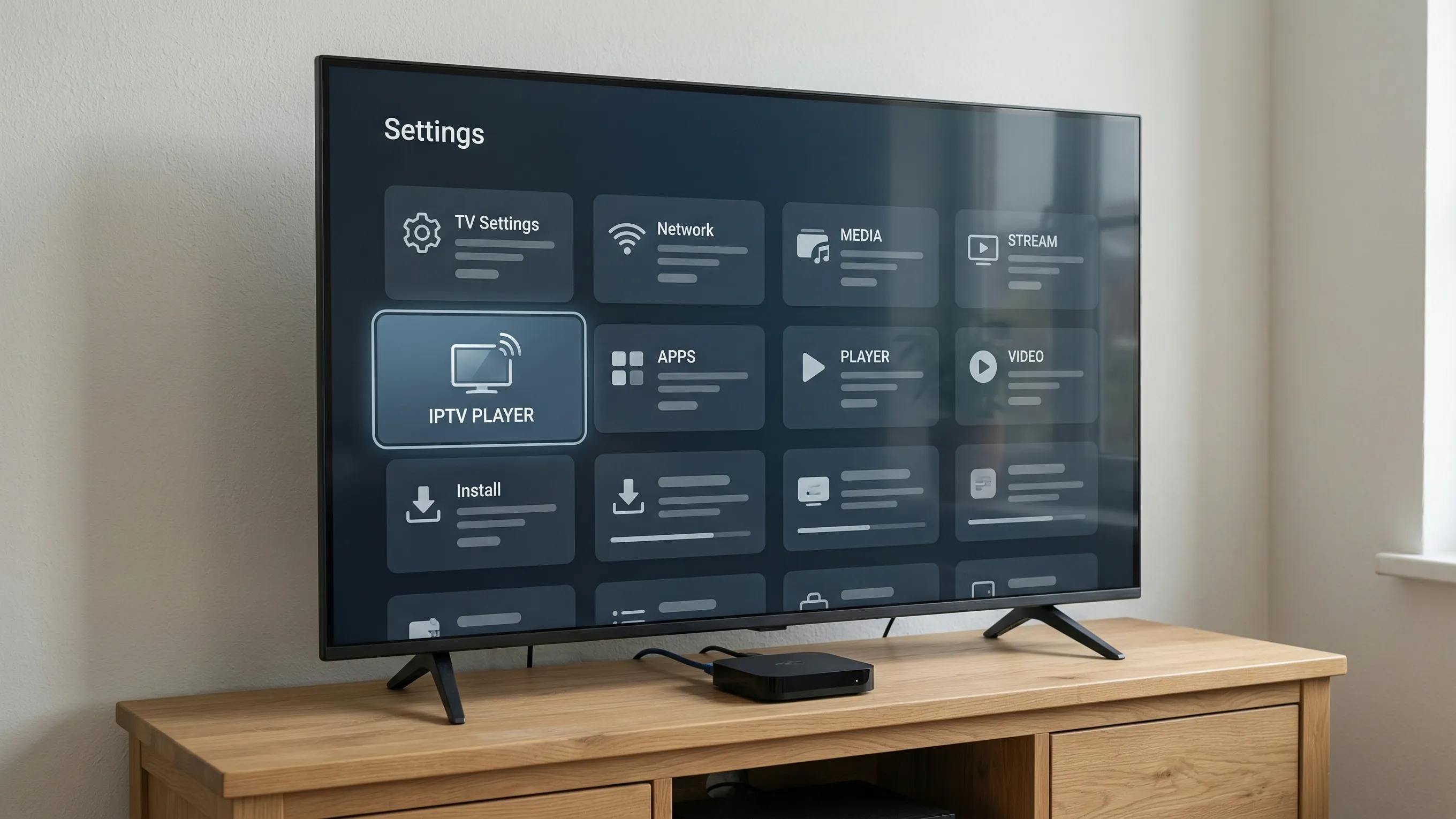
To set up IPTV on an Android box, install an IPTV player from Google Play, choose Xtream Codes or M3U login, enter the credentials from your provider and let the channels and programme guide load. On a certified box the whole process takes about ten minutes and needs no technical knowledge.
What you need before you start
- A Google-certified Android TV or Google TV box connected to your TV's HDMI port
- A Google account signed in on the box
- An active Hungary IPTV subscription or free trial: after ordering you receive a server URL, username and password (Xtream Codes) or an M3U link on WhatsApp, usually within minutes
- An internet connection of about 10 Mbps for FHD or about 25 Mbps for 4K, ideally over Ethernet
Step 1: Update the box and connect it properly
Before installing anything, go to Settings → System → About → System update and install pending updates. Updates often include newer video decoders and security fixes. Then connect the box with an Ethernet cable, or connect to the 5 GHz band of your router rather than the 2.4 GHz band. In our tests this single step removes more buffering than any app setting.
Step 2: Install an IPTV player from Google Play
Open Google Play on the box and search for the player you want. TiviMate is the most popular choice on Android TV. IPTV Smarters Pro, IBO Player Pro and OTT Navigator are good alternatives. App availability in Google Play can differ by country and changes over time. If your chosen app appears, install it like any other app and skip to Step 4.
Step 3: Sideload the app if it is not in your store
If a player is not listed in your region, you can install its APK file directly:
- Install the free Downloader app from Google Play.
- Allow it to install apps: Settings → Apps → Security & restrictions → Unknown sources, then enable Downloader (on some boxes the path is Settings → Device Preferences → Security & restrictions).
- In Downloader, open the app developer's official website and download the APK from there.
- Install the APK, then go back and turn the Unknown sources permission off again.
Only ever download APKs from the developer's own site. Modified "premium unlocked" APKs from forums are a common way malware reaches Android boxes, and the security section below explains why that matters.
Step 4: Choose your login method
When you open the player for the first time, it asks how to add a playlist:
- Xtream Codes API uses a server URL, a username and a password. It loads faster, separates live TV, films and series automatically and supplies catch-up information for the channels that offer it. Choose this whenever you have the details.
- M3U playlist is a single long link containing the whole channel list. It works in every player, but large lists load more slowly and VOD is often mixed in with live channels. Our M3U8 playlist guide explains the format and when to use it.
Step 5: Enter your credentials
Type the server URL, username and password exactly as you received them, including http:// and any port number such as :8080. Credentials are case-sensitive, and a missing character is the most common reason for a failed login. Typing with a TV remote is slow, so several players offer a QR code or a web page where you can enter the details from your phone. If the app still refuses, our IPTV login troubleshooting guide walks through every error message.
Step 6: Load channels and the programme guide
Save the playlist and let the app download everything. With 48,000+ channels and VOD titles, the first load can take one to two minutes on Wi-Fi. Later starts are much faster because the app keeps a local copy. Most players load the XMLTV guide automatically through Xtream Codes. If the guide stays empty, add the EPG link from your provider in the playlist settings and run a manual update.
Step 7: Tidy the channel list and test
Hide the country groups you never watch and create a Favourites group with the channels you use daily, such as M1, M2, Duna TV, RTL Klub, TV2, ATV, HírTV, M4 Sport, Sport1 and Sport2. Then open one FHD and one 4K channel for a minute each. If the 4K channel stutters, go to the settings section below before changing anything else.
Best IPTV Apps for Android Boxes – Comparison
TiviMate is the best overall IPTV player for Android boxes thanks to its programme guide and recording features. IPTV Smarters Pro is the simplest free option, and IBO Player Pro suits families who already use it on a smart TV. OTT Navigator and Kodi are for users who like to tinker.
| App | Cost model | Login methods | Programme guide (EPG) | Catch-up support | Best for |
|---|---|---|---|---|---|
| TiviMate | Free basic version; paid Premium unlocks extra features | Xtream Codes, M3U | Excellent cable-style grid | Yes, on channels that offer it | Most viewers who want a cable-box feel |
| IPTV Smarters Pro | Free | Xtream Codes, M3U | Good | Yes, on channels that offer it | Beginners and quick setup |
| IBO Player Pro | Device activation required (included free with Hungary IPTV annual plans) | Xtream Codes, M3U | Good | Yes, on channels that offer it | Households using IBO on other TVs too |
| OTT Navigator | Free version plus optional Premium | Xtream Codes, M3U | Very good, highly configurable | Yes | Advanced users who like customisation |
| Kodi + PVR IPTV Simple Client | Free, open source | M3U + XMLTV | Good once configured | Yes, with configuration | Tinkerers who already use Kodi |
TiviMate behaves like a cable receiver: a scrolling guide grid, fast zapping and reminders, plus recording and multi-view in the optional paid Premium tier, bought separately from the developer.
IPTV Smarters Pro has separate tiles for live TV, films and series. It is the easiest app to explain over the phone, so we often recommend it for first-time users and older relatives. Our IPTV Smarters Pro setup guide covers every screen.
IBO Player Pro is useful if you already use IBO on a Samsung or LG TV, because the interface is identical. Activation is tied to the device's MAC address, and Hungary IPTV includes a free activation with annual plans on both tiers. See the IBO Player Pro setup walkthrough.
For a wider look beyond Android, including Windows, iOS and smart TV players, read our comparison of the best IPTV players for every device.
Chat with our 24/7 support team
Android TV Settings for Better Picture Quality
The settings that most improve IPTV on an Android box are a wired or 5 GHz connection, frame-rate matching, the hardware video decoder and a slightly larger buffer. Together they fix most stuttering, judder and picture drops without changing your subscription or internet plan.
Use Ethernet or 5 GHz Wi-Fi
Wi-Fi is the most common bottleneck. Speed tests on a phone measure the line to your router, not the path from the router to the box behind the TV. If your box has an Ethernet port, use it. If not, connect to the router's 5 GHz network, keep the box out of a closed cabinet and, if needed, add a mesh node near the TV. A sustained ~25 Mbps reaching the box is the practical requirement for 4K.
Turn on frame-rate matching
Live football from M4 Sport is broadcast at 50 frames per second, while many films are 24 frames per second. If your box outputs everything at 60 Hz, motion looks slightly jerky, which shows up most in slow camera pans across a pitch. On Google TV and newer Android TV versions, look for Settings → Display & Sound → Advanced display settings → Match content frame rate. The Nvidia Shield has the same option under Display & Sound. TiviMate also has its own Auto frame rate option in its playback settings. Turn one of them on, not both.
Keep the hardware decoder on
IPTV players let you choose between the box's hardware video decoder and a software decoder. Hardware decoding is faster, cooler and handles H.265/HEVC 4K channels efficiently, so it should be the default. Switch to software decoding only for a single channel that shows sound with a black picture, and switch back afterwards.
Raise the buffer one step
TiviMate, OTT Navigator and Kodi let you set a buffer size. A slightly larger buffer gives the player more time to absorb short Wi-Fi dips at the cost of a second or two of extra delay when zapping. Increase it one step at a time, and only if you see stuttering. For more ways to get smoother streams, see our guide to buffer-free IPTV streaming.
Look after storage
Keep at least 1–2 GB of storage free and clear the IPTV app's cache every few weeks under Settings → Apps → [player] → Clear cache. Do not use Clear data, which deletes your playlist.
Security: Certified or No-Name Android Box?
Buy a Google Play Protect certified Android TV or Google TV box and avoid generic boxes sold as "unlocked" or "free TV". In June 2025 the FBI warned that uncertified Android streaming devices can carry malware from the factory, and a cheap box is not worth putting your home network at risk.
Many IPTV guides skip this topic or treat a bargain-bin no-name box as a smart buy. We take the opposite view, because this is a real risk that affects our customers' home networks.
On 5 June 2025, the FBI's Internet Crime Complaint Center published a public service announcement about the BADBOX 2.0 botnet. It explains that criminals use infected Internet-connected devices, explicitly including TV streaming devices, to run a botnet and resell victims' home internet connections. According to the FBI, devices can be compromised before purchase or infected during setup when they download apps with backdoors. The warning signs it lists include:
- "Generic TV streaming devices advertised as unlocked or capable of accessing free content."
- "Android devices that are not Play Protect certified."
- Devices that require Google Play Protect settings to be disabled.
The FBI advises consumers to avoid unofficial marketplaces advertising free streaming content, to check connected devices for suspicious activity, to disconnect suspicious devices from the network and to keep operating systems and firmware up to date.
Google's own advice points the same way. Its Play Protect certified devices page says certified devices are tested by the Android team, ship without pre-installed malware and include Google Play Protect. It recommends looking for the Play Protect certified logo when shopping and asking the retailer or manufacturer for a certified device.
In practice: buy a known certified brand such as Nvidia, Xiaomi, Google or Formuler from a reputable retailer, check certification in Play Store → Settings → About, never disable Play Protect to make an app work, install apps only from Google Play or the developer's official site, and keep the box updated. A "fully loaded" no-name box does not save you money; it shifts the cost onto your home network's security.
Troubleshooting IPTV on an Android Box
Most problems with IPTV on an Android box come from the network, the decoder or mistyped credentials. Each of the issues below has a quick fix you can try in a few minutes before contacting support.
"Only the 4K channels stutter, FHD is fine"
Cause: The box is not receiving a sustained ~25 Mbps, usually because of Wi-Fi. Fix: Switch to Ethernet or the 5 GHz band, move the router or add a mesh node near the TV, and raise the player's buffer one step. As a quick test, play the FHD version of the same channel: if it is smooth, the problem is bandwidth, not the service.
"The APK won't install – it says the app is blocked"
Cause: The Unknown sources permission is not enabled for the app you are installing from, or the APK file is incomplete or for the wrong processor type. Fix: Enable Unknown sources only for Downloader under Settings → Apps → Security & restrictions, download the APK again from the developer's official site, and choose the Android TV or ARM version if several are offered.
"The programme guide (EPG) is empty"
Cause: The guide has not finished downloading, the EPG link is missing for an M3U playlist, or the box's clock or time zone is wrong. Fix: Check that the date, time and time zone are set automatically under Settings → System → Date & time, run a manual EPG update in the player, and add the EPG link from your provider if you use an M3U playlist.
"There is sound but no picture on some channels"
Cause: A decoder mismatch, usually an H.265/HEVC channel the selected decoder cannot handle. Fix: In the player's settings, switch that channel's decoder from hardware to software, or the reverse. If several HEVC channels fail on an old no-name box, the hardware may lack proper HEVC support, and a certified box is the real fix.
"The box goes to sleep or exits the app during a match"
Cause: The screensaver, sleep timer or the TV's HDMI-CEC power settings are switching the box off. Fix: Lengthen or disable the sleep timer in Settings → System → Power & energy, set the screensaver to start after a longer period, and check the TV's HDMI-CEC options, which may be called Anynet+, SimpLink or BRAVIA Sync depending on the brand.
"Login failed or authorisation failed"
Cause: A typo in the server URL, username or password, a missing port number, or a subscription that has not been activated yet. Fix: Re-enter the details carefully, including http:// and the port, check upper and lower case, and confirm on WhatsApp that your account is active. Common questions about accounts and trials are also answered on our frequently asked questions page.
Subscribe and start streaming in 5 minutes
Pros and Cons
An Android box is the most flexible and future-proof way to watch IPTV on a TV, but it adds a second device and a second remote, and the quality depends on choosing a certified box.
Pros
- Runs the widest choice of IPTV players, including TiviMate, which is not available on Samsung, LG or Apple TV
- Adjustable decoder, buffer and frame-rate settings that fix most stuttering and judder
- Hardware decoding of H.265/HEVC 4K channels, plus AV1 on newer boxes
- Gives an older TV a current system and app support for far less than a new television
- Identical setup in every country, ideal for Hungarian households abroad
- Ethernet port on many boxes for the most stable 4K streaming
Cons
- Another device, power adapter and remote next to the TV
- Some players need sideloading in certain regions, which adds a few minutes to setup
- Cheap uncertified boxes carry real security risks and are hard to tell apart from certified ones online
- Low-storage models slow down with large programme guides unless you clear the cache regularly
- TiviMate's best features, such as recording and multi-view, require a separate paid Premium upgrade
Frequently Asked Questions About IPTV Android Boxes
Is the Xiaomi Mi Box S good for IPTV?
Yes. The Xiaomi Mi Box S and its successor, the Xiaomi TV Box S (2nd Gen), are Google-certified, inexpensive and run TiviMate, IPTV Smarters Pro and IBO Player Pro well in FHD and 4K. Their limitation is modest RAM and storage, so keep at least 1–2 GB free, clear the player's cache every few weeks and, if possible, use a USB Ethernet adapter or the 5 GHz Wi-Fi band for 4K channels.
Is the Nvidia Shield TV still worth it for IPTV in 2026?
The Nvidia Shield TV and Shield TV Pro remain among the fastest and most reliable Android TV boxes for IPTV, with quick channel switching, excellent upscaling and a long update record. They lack AV1 hardware decoding, which newer boxes have, but that rarely matters for today's IPTV channels. If you already own one, keep it. If you are buying new, compare it with the newer options in our set top box guide first.
What internet speed do I need for IPTV on an Android box?
Plan on roughly 10 Mbps for one FHD channel and roughly 25 Mbps for one 4K channel, sustained at the box rather than measured on your phone. If several people stream at the same time, add those figures together. A wired Ethernet connection is the most reliable way to keep that speed stable, especially for live sport.
Is an Android box better than a Fire TV Stick for IPTV?
For most people in 2026, yes. Android TV boxes install IPTV players from Google Play and allow sideloading when needed, while newer Fire TV Stick models running Amazon's Vega OS do not support installing Android apps from outside Amazon's store. Older Fire TV Sticks running Fire OS still work, but a certified Android TV or Google TV box is the safer long-term choice.
Can I use my IPTV Android box abroad?
Yes. An Android box works the same in any country with a stable internet connection: you log in with the same credentials and watch the same channels, including Hungarian channels such as M1, Duna TV, RTL Klub and TV2. This makes it a popular choice for Hungarian families in the UK, Germany, Austria, the USA and Canada, and for taking to a holiday home.
How many devices can I use with one subscription?
It depends on your plan. With the Basic plan you can use several devices, such as an Android box in the living room and a phone, but not at the same time unless the simultaneous-stream feature is activated separately, which may cost extra. The Premium plan, which is focused on Hungarian content, supports up to three simultaneous streams depending on configuration. Installing the app on more devices does not add more simultaneous streams.
Do I need TiviMate, or is a free app enough?
A free app is enough to start. IPTV Smarters Pro and the free version of TiviMate play every channel and show the programme guide. TiviMate's paid Premium tier adds extras such as recording, multi-view and more customisation, which many daily viewers find worth it, but it is optional and not required by your IPTV subscription.
Conclusion: Getting the Most From Your IPTV Android Box
An IPTV Android box is the most flexible way to bring live TV to any television in 2026. Pick a Google Play Protect certified Android TV or Google TV box and connect it by Ethernet or 5 GHz Wi-Fi. Install TiviMate or IPTV Smarters Pro, log in with Xtream Codes and turn on frame-rate matching. That setup plays FHD and 4K channels smoothly, in Hungary or anywhere abroad.
Hungary IPTV offers two tiers. Basic is a broad international and English-language service with Hungarian content included: €12 for one month, €27 for three months, €40 for six months or €60 for twelve months, effectively €5 a month. Premium is focused on Hungarian content, with more Hungarian channels and up to three simultaneous streams depending on configuration: €29, €60, €90 or €160, which is about €13 a month on the annual plan. Annual plans include a free IBO Player Pro activation, there is no long-term contract or auto-renewal, and a free trial is available on request. Compare both tiers on our plans and pricing page, or start from the Hungary IPTV home page and message us on WhatsApp. We'll help you set up your box, usually within a few minutes.
About the author: The Hungary IPTV Team has been helping customers in Hungary, Europe, Canada and the USA enjoy seamless IPTV streaming since 2022. Our support team is available 24/7 on WhatsApp for setup, troubleshooting, and subscription questions.