IPTV Smarters Player Setup 2026: Every Device Step by Step
IPTV Smarters Player setup guide for Android, iOS, Smart TV, Fire Stick & Windows. Add M3U playlist or Xtream Codes in minutes.
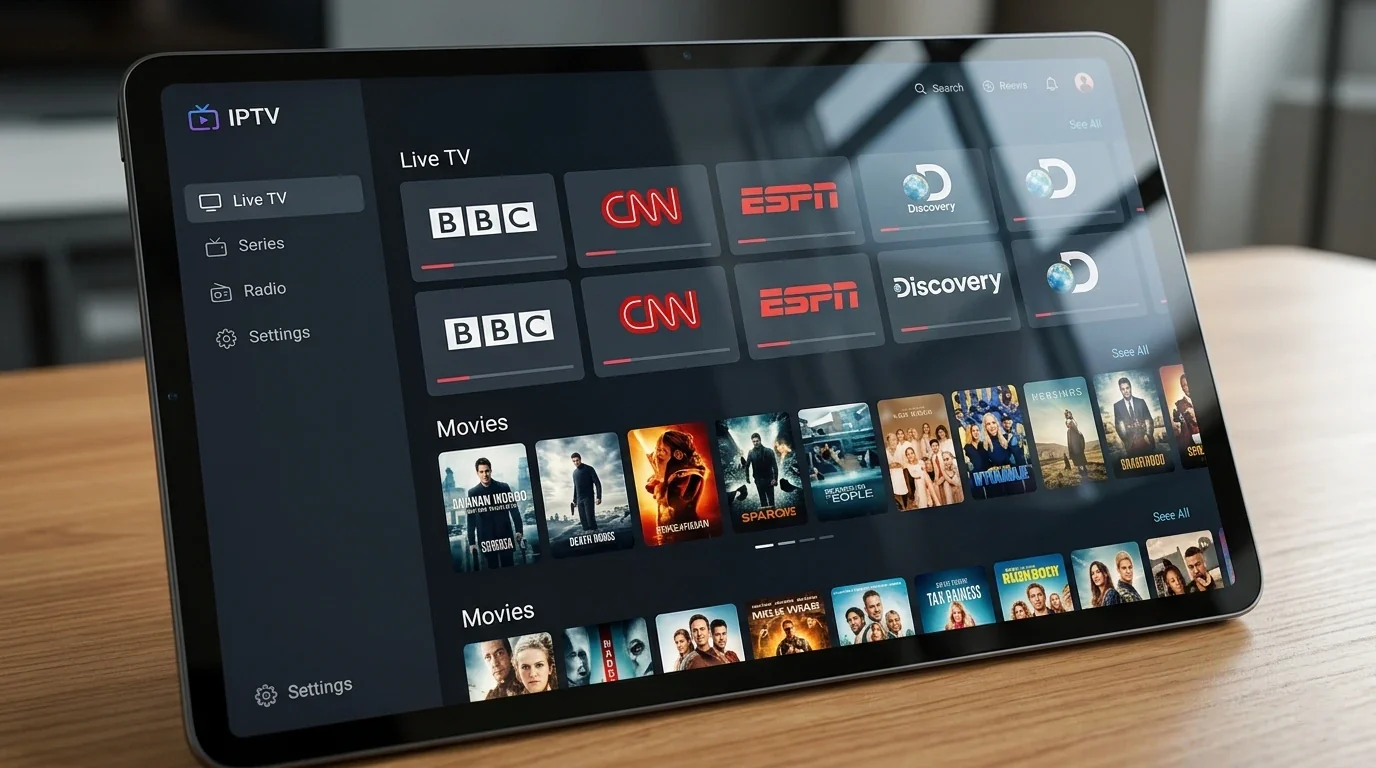
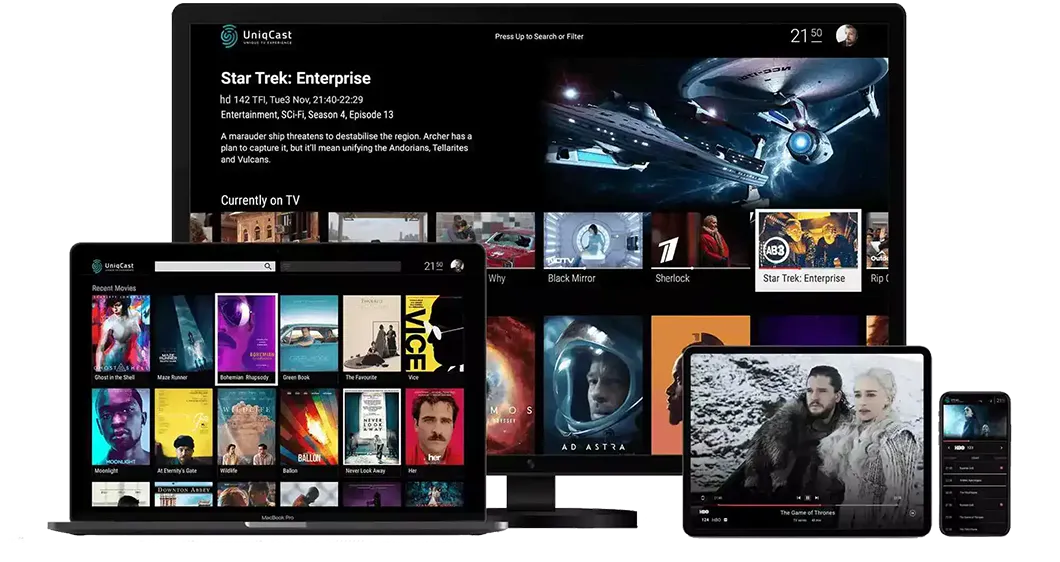
IPTV Smarters Player is the most widely installed IPTV client application in the world — and for good reason. It is free to download, works on virtually every device, and supports both M3U playlist URLs and Xtream Codes API login straight out of the box. Whether you are setting up IPTV for the first time or switching from a different IPTV player, this guide walks you through every step on every major platform: Android, iOS, Amazon Fire Stick, Android TV, Samsung Smart TV, and Windows.
If you are subscribed to a service like Hungary IPTV and you have your credentials ready, you can be watching live channels in under fifteen minutes. In our tests across dozens of customer setups, IPTV Smarters Player consistently delivers fast channel loading, smooth EPG integration, and a clean interface that suits both beginners and experienced users.
Quick summary:
- IPTV Smarters Player is a free IPTV client by WHMCS Smarters that supports both M3U playlists and Xtream Codes API login out of the box.
- It installs from the official stores on Android, iOS, Fire Stick, Android TV, Samsung Smart TV and Windows — no sideloading required.
- With credentials ready, most users are watching live channels in under 15 minutes; the first channel-list load takes 30–90 seconds.
- Xtream Codes login switches channels faster than M3U because the app skips re-parsing the full playlist at each session start.
- Buffering fixes: switch from 2.4 GHz to 5 GHz Wi-Fi or Ethernet, and allow at least 10 Mbps for HD streams.
Table of contents
- What Is IPTV Smarters Player and How Does It Work?
- How to Set Up IPTV Smarters Player on Android
- How to Set Up IPTV Smarters Player on iPhone and iPad (iOS)
- How to Set Up IPTV Smarters Player on Amazon Fire Stick
- How to Set Up IPTV Smarters Player on Android TV and Google TV
- How to Set Up IPTV Smarters Player on Samsung Smart TV
- How to Set Up IPTV Smarters Player on Windows PC
- Navigating IPTV Smarters Player — Key Features Explained
- Using the EPG Day to Day: Navigation, Mini-Guide and Full Timeline
- Catch-Up TV in IPTV Smarters Player: Watching What You Missed
- Favourites and Parental Controls in Daily Use
- Multi-Screen View and Chromecast
- IPTV Smarters Player vs IPTV Smarters Pro — Which Should You Use?
- IPTV Smarters Player vs TiviMate vs IBO Player Pro: Which App for Which Viewer?
- Troubleshooting IPTV Smarters Player — Common Issues and Fixes
- IPTV Smarters Player FAQ
- Get Started with a Reliable IPTV Subscription
What Is IPTV Smarters Player and How Does It Work?
IPTV Smarters Player is a free IPTV client developed by WHMCS Smarters. The app itself does not provide channels — it is a player. You supply the subscription credentials from your IPTV provider, and the app connects to the provider's servers to stream live TV, VOD content, and catch-up TV to your screen.
Think of it the same way you think of VLC or Windows Media Player: the app is the vehicle, your IPTV subscription is the content.
What IPTV Smarters Player Supports
- Live TV — thousands of channels organised by category and country
- Video on Demand (VOD) — movies and series on demand
- Catch-up TV — watch content you missed, where your provider supports it
- Electronic Programme Guide (EPG) — a full TV schedule guide per channel
- Multiple user profiles — manage more than one subscription in the same app
- M3U playlist URL loading
- Xtream Codes API login (username, password, server URL)
Where IPTV Smarters Player Is Available
- Android smartphones and tablets (Google Play Store)
- iPhone and iPad (Apple App Store)
- Android TV and Google TV
- Amazon Fire Stick and Fire TV
- Samsung Smart TV (select models)
- Windows PC (Microsoft Store)
- macOS (limited support via sideloading)
Before you start any setup, have your IPTV credentials ready. Most providers send three pieces of information: a server URL, a username, and a password. Some send a single M3U URL that contains all three in one link. Either format works with IPTV Smarters Player.
If you are still choosing a provider, our getting started with IPTV guide explains how IPTV subscriptions work and what to look for in a reliable service.
How to Set Up IPTV Smarters Player on Android
Android is the easiest platform to set up, and the steps below apply to both smartphones and tablets.
Step 1 — Download from the Google Play Store
Open the Google Play Store, search for IPTV Smarters Player, and install the app published by WHMCS Smarters. Look for the blue icon with a play button. The app is free with no in-app purchases required for basic use.
Step 2 — Choose Your Login Method
On first launch, the app displays a welcome screen asking how you want to add your subscription. You have two options:
- Login with Xtream Codes API — the recommended option if your provider gave you a username, password, and server URL
- Load Your Playlist (M3U URL) — use this if your provider gave you a single long URL ending in
.m3uor containing your credentials inline
Step 3a — Adding Your Subscription via Xtream Codes
Select Login with Xtream Codes API and fill in the following fields:
- Any Name — a label for this profile (e.g., "Hungary IPTV")
- Server URL — the server address from your provider (e.g.,
http://yourserver.com:8080) - Username — your account username
- Password — your account password
Tap Add User. The app contacts your provider's server and loads your full channel list, VOD library, and EPG. This first load may take 30–90 seconds depending on the size of the channel list and your internet speed.
Step 3b — Adding Your Subscription via M3U URL
Select Load Your Playlist and enter:
- Any Name — a label for this profile
- M3U URL — the full URL from your provider
Tap Add User. The playlist parses and your channels appear.
Step 4 — Start Watching
Navigate to Live TV, browse by category — Hungary, Sports, News, Movies, Kids, International — or use the search icon to find a specific channel. Tap any channel to begin streaming.
In our tests on Android, channel switching with Xtream Codes login is consistently faster than M3U loading because the app does not need to re-parse the entire playlist on each session start. We recommend Xtream Codes login where your provider supports it. If you prefer M3U and want to understand the format in depth — or need to load the same playlist URL into TiviMate, VLC, or a Smart TV app — our IPTV player M3U setup guide for every platform covers every major device and app in one place.
Try Hungary IPTV before paying anything
How to Set Up IPTV Smarters Player on iPhone and iPad (iOS)
The iOS version of IPTV Smarters Player is available on the Apple App Store and works identically to Android in terms of functionality, though the interface layout differs slightly due to Apple's design guidelines.
Step 1 — Download from the App Store
Open the App Store on your iPhone or iPad, search for IPTV Smarters Player, and install the app by WHMCS Smarters.
Step 2 — Add Your Subscription
Tap the + (plus) button in the top right corner of the home screen to add a new user profile.
Step 3 — Enter Your Credentials
Choose your login method — Xtream Codes API or M3U URL — and enter your credentials exactly as provided by your IPTV service. Pay attention to uppercase and lowercase characters in passwords.
Tap Save. Your channels load.
Step 4 — Navigate and Watch
Tap Live TV to browse channels. Swipe left or right to move between categories. Tap a channel to start playback.
Note for iOS users: Apple's strict App Store policies occasionally result in IPTV Smarters Player being temporarily unavailable or updated with UI changes. If the app is unavailable, search for "IPTV Smarters Pro" as an alternative — see our comparison section below.
How to Set Up IPTV Smarters Player on Amazon Fire Stick
The Fire Stick is one of the best devices for IPTV, and IPTV Smarters Player is available directly from the Amazon Appstore — no sideloading or developer mode required.
Step 1 — Search in the Amazon Appstore
From the Fire Stick home screen, press the search icon (magnifying glass icon in the top navigation bar) and type IPTV Smarters Player. Alternatively, use the Alexa voice remote: hold the microphone button and say "IPTV Smarters Player."
Step 2 — Download and Install
Select the app in the search results (published by WHMCS Smarters) and press Download. Installation takes about a minute.
Step 3 — Add Your Subscription
Open the app using your Fire Stick remote. Navigate to Add New User and select Login with Xtream Codes API. Use the on-screen keyboard to enter your Server URL, Username, and Password.
Pro tip: Typing with the Fire Stick remote on-screen keyboard is slow. Download the Amazon Fire TV app on your Android or iOS phone — it allows you to use your phone keyboard as a Bluetooth input for the Fire Stick, making credential entry much faster.
Step 4 — Select Add User and Watch
Once credentials are saved, your channels load. Use the remote's directional pad to navigate categories, the OK button to select, and the back button to return. For device comparisons and recommendations, our best devices for IPTV streaming article covers Fire Stick models alongside Android boxes, Smart TVs, and more.
How to Set Up IPTV Smarters Player on Android TV and Google TV
Android TV and Google TV devices — including Nvidia Shield, Chromecast with Google TV, and many Smart TVs — run a version of Android optimised for remote navigation.
Download and Install
From the Play Store on your Android TV device, search for IPTV Smarters Player and install it. The TV-optimised layout appears automatically on Android TV.
Add Your Credentials
Open the app and navigate to Add New User. Use the directional pad to select Login with Xtream Codes API, then enter your credentials on the on-screen keyboard. On many Android TV remotes, a microphone button lets you dictate entries — useful for long server URLs.
Start Watching
Select a category under Live TV and press OK on any channel to start playback. The interface on Android TV is larger and easier to read from across the room than the mobile version.
How to Set Up IPTV Smarters Player on Samsung Smart TV
IPTV Smarters Player is available on select Samsung Smart TVs through the Samsung App Store (Tizen OS).
Step 1 — Press the Home button on your Samsung remote and navigate to Apps.
Step 2 — In the search field, type IPTV Smarters. If your TV model supports it, the app appears in results — install it.
Step 3 — Open the app and add your subscription using the Xtream Codes or M3U method described above.
Important note: Not all Samsung TV models carry IPTV Smarters Player in the Tizen store. Model availability varies by region and production year. If the app does not appear for your model, the Smart IPTV (SIPTV) app is a well-supported alternative available on most Samsung and LG Smart TVs.
Activate your trial in just a few minutes
How to Set Up IPTV Smarters Player on Windows PC
IPTV Smarters Player is available in the Microsoft Store for Windows 10 and Windows 11.
Step 1 — Open the Microsoft Store and search for IPTV Smarters Player. Install the app.
Step 2 — Launch the app and add your subscription via Xtream Codes or M3U URL using the same steps as the Android setup.
Step 3 — Navigate with your mouse. Click Live TV, browse channels by category, and click a channel to watch.
Windows users who prefer a lighter alternative can also use VLC Media Player: go to Media → Open Network Stream, paste your M3U URL, and click Play. VLC does not offer an EPG or VOD library view, but works reliably for live channels. To see how Smarters, VLC, MyIPTV Player and Kodi compare on a PC, read our best IPTV player for Windows roundup.
Navigating IPTV Smarters Player — Key Features Explained
Once your subscription is loaded and channels are playing, here is what each section of the app does.
Live TV
The main section. Channels are grouped into categories provided by your IPTV service: Hungary, Sports, News, Entertainment, Kids, International, and so on. Use the search icon to find any channel instantly by name. Based on customer feedback, bookmarking frequently watched channels in Favourites dramatically speeds up daily use.
Electronic Programme Guide (EPG)
The EPG displays the current and next programme for each channel — the same as a traditional printed TV guide. Press the EPG button while a channel is selected to see its full schedule. On first load, EPG data can take 2–5 minutes to download fully; this is normal.
VOD — Movies and Series
Your subscription's on-demand library. Browse by genre, search by title, or filter by recently added. We recommend using the search function for specific titles rather than scrolling through large libraries.
Favourites
Long-press any channel (or right-click on Windows) to add it to your Favourites list. The Favourites category then appears at the top of your channel list for quick access.
Multiple User Profiles
IPTV Smarters Player supports several IPTV subscriptions in one app. If you have two subscriptions — for example, a Hungarian service and an international service — you can switch between them from the user profile menu without logging in and out.
Using the EPG Day to Day: Navigation, Mini-Guide and Full Timeline
The fastest way to see what is on: while a channel is playing, press OK (or tap the screen on mobile) to open the mini-guide showing the current and next programme, and press the EPG or Guide button for the full multi-channel timeline. Where your provider supplies the data, the guide covers up to 7 days ahead.
The Mini-Guide While Watching
The mini-guide is the overlay bar that appears at the bottom of the screen during playback. It shows the programme title, start and end times, and a progress bar for the current show. On Fire Stick and Android TV remotes, pressing up or down while the overlay is open previews the now-playing information of neighbouring channels — you can see what is on the next channel before you actually switch to it, which is much faster than backing out to the channel list every time.
Reading the Full EPG Timeline
The full guide uses a grid layout: channels run vertically, time runs horizontally. Scroll right to see later programmes and use the day selector to jump ahead. One habit matters more than any other with a 48,000-channel subscription: never open the guide on the unfiltered "All" category. Select a category first — Hungary, Sports, News — and then open the guide. The grid loads faster and every row is a channel you might actually watch. Selecting a future programme shows its description where the provider supplies one.
Three Daily Habits That Make the Guide Faster
- Open the guide from Favourites. With Favourites as your starting category, the timeline shows only your 20–30 regular channels instead of thousands of rows.
- Do an evening sports check. Around 18:00, scan M4 Sport, Sport1, Sport2 and Arena4 in the grid to plan the evening's football, handball or Formula 1 in about thirty seconds.
- Use channel search, then the single-channel schedule. Searching for a channel by name and opening its own schedule view is quicker than scrolling the grid when you only care about one channel's day.
Chat with our 24/7 support team
Catch-Up TV in IPTV Smarters Player: Watching What You Missed
Catch-up (also called TV archive) lets you replay programmes that have already aired — no recording, no timer, no storage needed. In IPTV Smarters Player you open the Catch Up section from the home screen, pick a channel, pick the day, then pick the programme. Catch-up works on selected channels only: your provider decides which channels carry an archive and how many days it keeps.
How to Play a Catch-Up Programme
- From the home screen, open Catch Up (labelled TV Archive in some builds).
- Only channels with an archive appear in this list — select the channel you missed.
- Choose the day. With Hungary IPTV, catch-up-enabled channels keep up to 7 days of programming.
- Pick the programme from the schedule list, which is built from the channel's EPG data.
- Playback starts from the beginning of the show, and unlike live TV you can pause, rewind and seek freely within it.
Catch-Up vs VOD: What Is the Difference?
VOD is a permanent, curated library of movies and series that you browse by title or genre. Catch-up is a rolling archive of the broadcast schedule itself, organised by channel and date, and it expires — typically after 7 days the oldest day drops off. If you missed yesterday's match or last night's episode on a Hungarian channel, catch-up is the tool; if you want a film from 2019, that is the VOD library's job.
What If a Programme Is Missing From Catch-Up?
The most common reason is simply that the channel is not catch-up-enabled — the archive exists on selected channels only, so first check whether the channel appears in the Catch Up section at all. If it does not, no archive exists for it. If a normally archived channel is missing a single day or show, the gap is on the provider's side (an EPG mapping or recording gap), and reporting it to support is the only fix — nothing in the app settings can restore it.
Favourites and Parental Controls in Daily Use
A favourites list of 20–30 channels turns a 48,000-channel subscription into a personal channel plan, and a PIN lock keeps adult categories away from children. Both features are built into IPTV Smarters Player and take only a few minutes to set up — and both make a bigger difference to daily comfort than any playback setting.
Building a Favourites List That Mirrors How You Actually Watch
Long-press a channel on mobile, or highlight it and press the options button on a TV remote, then choose Add to Favourites. A practical starter set for a Hungarian household: M1, M2, Duna TV, RTL Klub, TV2, M4 Sport, Sport1, Sport2 and Arena4, plus one news and one kids channel. The Favourites category then sits at the top of your channel list and, combined with the EPG habit above, becomes the only category you open on a normal evening. Prune it occasionally — remove the extra sports feeds you added for a tournament once it ends. Note that favourites are stored locally, per device and per profile, so set them up once on each device you use.
Locking Categories With a PIN
Go to Settings → Parental Control, set a PIN code, and lock the categories you want restricted — adult categories being the obvious case. Locked categories then prompt for the PIN every time they are opened. The standard Player's parental controls work at category level, which is simpler than the fine-grained controls in the Pro version but entirely sufficient for hiding adult content in a family setup. Pick a PIN the children do not already know from the front door.
Multi-Screen View and Chromecast
IPTV Smarters Player can show more than one stream at a time on capable devices, and the mobile app can send video to a TV. Two caveats apply: multi-screen is hardware-hungry, and every active tile counts as one stream against your subscription's simultaneous-connection limit.
Watching Up to Four Channels at Once
Open the Multi-Screen tile from the home screen, choose a layout (two, three or four tiles), then assign a channel to each tile. Audio always follows the highlighted tile — move the focus to switch which screen you hear. In our tests, an Nvidia Shield or a Fire TV Stick 4K / 4K Max handles four simultaneous HD tiles comfortably, while entry-level sticks and older Smart TVs start dropping frames beyond two. Remember that each tile opens a separate connection to your provider: on a single-connection plan the second tile will simply refuse to start. The number of parallel streams you can run is set by your subscription plan, not by the app.
Casting From Your Phone With Chromecast
On supported Android builds, a Cast icon appears in the player when a Chromecast or Android TV is discovered on the same Wi-Fi network. Tap it, pick the device, and playback moves to the TV while your phone becomes the remote. If the icon is missing, the usual causes are the phone and TV sitting on different networks or an app build without cast support. For everyday viewing, installing IPTV Smarters Player natively on the Fire Stick or Android TV is more stable and delivers better quality than casting, which re-encodes the stream on some phones. On iPhone, AirPlay screen mirroring works as a fallback, with the same recommendation: a native app on the TV device is always the smoother option.
IPTV Smarters Player vs IPTV Smarters Pro — Which Should You Use?
Both apps appear in the same app stores and are developed by the same company. In our tests, the functional difference for everyday IPTV use is small.
IPTV Smarters Player (standard version):
- Free, no in-app purchases for core features
- Supports Xtream Codes API and M3U URL
- Full VOD, EPG, catch-up, and multi-profile support
- Suitable for the vast majority of users
IPTV Smarters Pro:
- Also free in most app stores
- Slightly more refined interface, particularly on TV devices
- Advanced EPG layout with horizontal grid view
- Better multi-screen / picture-in-picture support on supported devices
- Preferred by users who watch multiple streams simultaneously
For most single-screen users, the standard IPTV Smarters Player is entirely sufficient. Power users and those who prefer the more polished Pro interface should check our detailed IPTV Smarters Pro guide which includes a full feature comparison and Pro-specific setup tips.
Subscribe and start streaming in 5 minutes
IPTV Smarters Player vs TiviMate vs IBO Player Pro: Which App for Which Viewer?
The short answer: stay with IPTV Smarters Player if you watch on a mix of devices including a phone, iPhone or Windows PC and want everything free. Pick TiviMate if you watch exclusively on an Android TV or Fire TV box and want the best EPG grid available. Pick IBO Player Pro if your TV is a Samsung or LG and you want a native Smart TV app with no extra hardware.
| Feature | IPTV Smarters Player | TiviMate | IBO Player Pro |
|---|---|---|---|
| Price | Free | Free base version; paid premium unlock for multiple playlists and recording | Free trial, then a one-time device activation |
| Platforms | Android, iOS, Fire Stick, Android TV, Samsung TV, Windows | Android TV, Google TV, Fire TV only | Samsung and LG Smart TVs, Android, Fire Stick |
| Phone and tablet use | Yes, including iOS | No | Limited |
| Login methods | Xtream Codes + M3U | Xtream Codes + M3U | Playlist upload via device-key web portal |
| EPG grid | Good | Best in class | Good |
| Catch-up | Yes, on provider-enabled channels | Yes | Yes |
| Learning curve | Easiest | Moderate | Easy |
TiviMate's strength is the living room: the fastest remote-driven navigation of any IPTV app we have tested, a fully customisable guide, and smooth channel zapping. Its weaknesses are just as clear — there is no phone or iOS version at all, and the features most people want (multiple playlists, recording, reminders) sit behind the paid premium unlock. IBO Player Pro takes a different approach: you configure it through a web portal using the device key shown on screen, which feels unusual at first but makes it one of the few polished options that runs natively on Samsung Tizen and LG webOS televisions. It charges a one-time activation per device — worth knowing that Hungary IPTV annual plans include free IBO Pro Player activation on both tiers. IPTV Smarters Player remains the only one of the three that covers every screen in the house — TV, phone, tablet and PC — at zero cost, which is why it is the default recommendation for mixed-device households. Our best IPTV player comparison article covers all of these apps plus GSE Smart IPTV side by side if you want the full breakdown.
Troubleshooting IPTV Smarters Player — Common Issues and Fixes
Most IPTV Smarters Player problems fall into five buckets: wrong credentials, a network that is too slow or congested, stale EPG data, a corrupted app cache, or the app missing from a regional store. The fixes below resolve the vast majority of cases in under ten minutes, without reinstalling anything.
Channels Not Loading or Stuck on Loading Spinner
Check your internet connection first — IPTV streaming requires a stable connection of at least 10 Mbps for HD content. Verify that your credentials contain no extra spaces before or after the text. Delete the user profile, re-enter credentials carefully, and try again — our IPTV login troubleshooting guide covers every common credential error in detail. If the problem persists, contact your IPTV provider to confirm the server is online.
Buffering or Freezing During Playback
Buffering is almost always a network issue rather than an app problem. In our experience, switching from 2.4 GHz Wi-Fi to 5 GHz Wi-Fi resolves buffering in most cases. A wired ethernet connection is even better. If you are on a good connection, try reducing stream quality in app Settings → Player → Quality.
EPG Not Showing or Showing Wrong Information
Go to Settings → EPG and force a manual refresh. EPG data is large and takes several minutes to load completely on a new device. If EPG remains incorrect after a refresh, your provider may need to update the EPG source — contact their support.
App Crashes on Launch
Clear the app cache: on Android, go to Settings → Apps → IPTV Smarters Player → Clear Cache. On Fire Stick, Settings → Applications → Manage Installed Applications → IPTV Smarters → Clear Cache. If crashes continue, uninstall and reinstall the app.
IPTV Smarters Player Not Available in Your App Store
Certain Samsung and LG Smart TV models do not carry IPTV Smarters in their regional stores. For these devices, try the Smart IPTV (SIPTV) app as an alternative. For Android TV and Fire Stick, the app is consistently available and we have not seen availability issues with these platforms.
Catch-Up Not Offered on a Channel
Catch-up is enabled per channel by your provider — it works on selected channels only, so a missing archive usually means that channel simply is not archived. Open the Catch Up section: if the channel does not appear there at all, it has no archive. If a normally archived channel is missing a single day or programme, that is a provider-side recording gap — report it to support, as no app setting can restore it.
Cast Icon Missing in the Mobile App
The Chromecast icon only appears when your phone and the cast target are on the same Wi-Fi network and the app build supports casting. Reconnect both devices to the same network, then force-close and reopen the app. If the icon still does not appear, install IPTV Smarters Player natively on the TV device instead — native playback is more stable and higher quality than casting in any case.
Favourites Disappeared After Reinstalling
Favourites and parental-control settings are stored locally on the device, not on your provider's server. Uninstalling the app or clearing its data deletes them, and they never sync between devices. After a reinstall you will need to re-add them manually — keeping your list to 15–20 core channels makes this a two-minute job rather than an evening project.
IPTV Smarters Player FAQ
Is IPTV Smarters Player free to download and use?
Yes, IPTV Smarters Player is completely free to download from the Google Play Store, Apple App Store, Amazon Appstore, and Microsoft Store. The app itself costs nothing — you only need to pay for the IPTV subscription that provides the channels.
What is the difference between M3U URL and Xtream Codes login?
Both methods connect you to the same IPTV service, but they work differently. M3U login uses a single URL that points to a playlist file containing all your channel data. Xtream Codes login uses three separate pieces of information — a server URL, username, and password — to authenticate directly with the provider's server. Xtream Codes is generally faster at loading and more reliable for large channel lists because it does not need to download and parse a large playlist file every time you open the app.
How many devices can I use IPTV Smarters Player on?
IPTV Smarters Player itself can be installed on unlimited devices. However, your IPTV subscription typically comes with a limit on simultaneous connections — commonly one or two streams at once. You can install the app on as many devices as you like, but only the number of connections permitted by your subscription can stream at the same time.
Why is my EPG not loading or showing incorrect programme information?
EPG data is sourced from your IPTV provider's servers and can take 3–10 minutes to fully download on first use. If the EPG still appears incorrect after waiting, go to Settings → EPG and trigger a manual refresh. Persistent EPG errors usually indicate an issue on the provider's side — contact your IPTV service support team for assistance.
Can I use IPTV Smarters Player with any IPTV provider?
Yes — IPTV Smarters Player supports all providers that use the Xtream Codes API or standard M3U playlist format, which covers the vast majority of IPTV services. Check with your provider that they support one of these two formats before subscribing. Providers that use proprietary apps or non-standard formats may not be compatible.
Does IPTV Smarters Player support 4K streaming?
Yes, the app itself supports 4K streams. Whether you actually receive 4K depends entirely on your IPTV subscription — your provider must offer 4K channels or VOD content, and your internet connection must be fast enough (typically 25 Mbps or more for stable 4K playback). The device you are using also needs to support 4K output.
How do I watch catch-up programmes in IPTV Smarters Player?
Open the Catch Up section from the home screen, select a channel that carries an archive, choose the day, then choose the programme from the schedule list. Catch-up is available on selected channels only, and the archive window is set by your provider — with Hungary IPTV, catch-up-enabled channels keep up to 7 days. You can pause, rewind and seek freely within catch-up playback.
Can I cast IPTV Smarters Player from my phone to a TV?
Yes — on supported Android builds, a Cast icon appears in the player when a Chromecast or Android TV device is on the same Wi-Fi network. Tap it, choose the device, and playback moves to the TV. On iPhone, AirPlay screen mirroring works as a fallback. For daily viewing, installing the app natively on a Fire Stick or Android TV is more stable and better quality than casting.
Can I watch multiple channels at the same time in IPTV Smarters Player?
Yes — the Multi-Screen feature shows up to four streams in a split layout on capable hardware such as the Nvidia Shield or Fire TV Stick 4K, with audio following the highlighted tile. Note that every active tile counts as one connection, so the number of tiles you can actually play is limited by your subscription's simultaneous-stream allowance, not by the app.
Should I switch to TiviMate or IBO Player Pro instead?
Switch to TiviMate if you watch only on an Android TV or Fire TV box and want the most advanced EPG grid — though its key features require a paid premium unlock. Choose IBO Player Pro for a native Samsung or LG Smart TV experience; Hungary IPTV annual plans include its activation free on both tiers. Stay with IPTV Smarters Player if you also watch on a phone, iPhone or Windows PC.
Get Started with a Reliable IPTV Subscription
IPTV Smarters Player is the player — but the channels come from your subscription. If you are looking for a service fully compatible with IPTV Smarters Player and optimised for viewers in Hungary and across Europe, Hungary IPTV offers:
- 48,000+ live channels including all Hungarian channels (M4 Sport, RTL, TV2, Duna and more)
- HD, Full HD and 4K stream quality
- Champions League, Premier League, Formula 1 and all major sports
- Extensive VOD library with thousands of movies and series
- Full EPG for every channel
- Anti-buffering and anti-freeze server infrastructure
- 24/7 WhatsApp customer support in Hungarian and English
View our current subscription plans and pricing to find the right option for you. Most customers are watching their first channel within 15 minutes of subscribing, and our support team is available on WhatsApp to guide you through the setup if needed.
About the author: The Hungary IPTV Team has been helping customers in Hungary, Europe, Canada and the USA enjoy seamless IPTV streaming since 2022. Our support team is available 24/7 on WhatsApp for setup, troubleshooting, and subscription questions.